Moving from SoftMouse.NET
Bring your SoftMouse.NET animal records
Export your mouse list, match its IDs, tags, cages and genotypes, and check ended animals before importing.
Before you start
- Keep the original export. Include SID if you want to keep SoftMouse's system IDs as the animal IDs.
- Sign in to the destination lab. Try the fictional sample in a blank practice lab so its IDs do not match existing animals.
- This animal-list import does not create mating pairs or litters from a mouse's State.
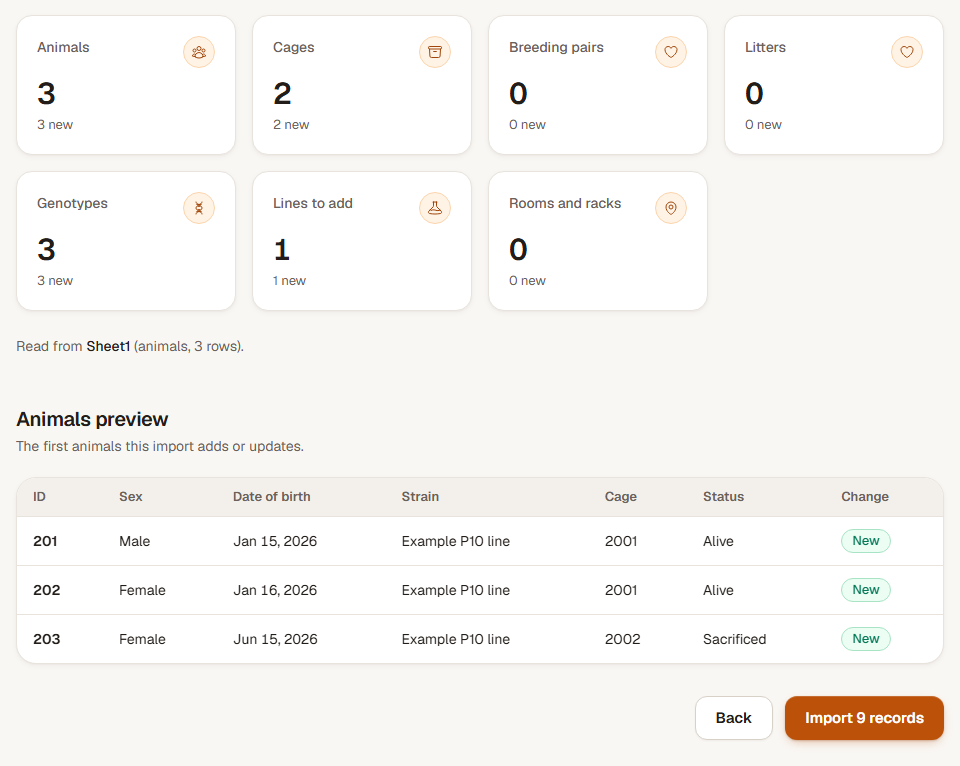
A fictional animal list: 3 animal records, 2 cages, 1 line and 3 genotype results. In an empty lab, the preview offers Import 9 records. One mouse is Ended, leaving 2 living animals.
Step 1: Export the mouse list you want to move
Open the Mice list in SoftMouse.NET and set its filters. Choose the columns to export, including SID, Physical Tag, Sex, Date of Birth, State, Mouseline, Cage SID and Genotype.
If you tick individual records, only those records are exported. With none ticked, SoftMouse exports the filtered list across its pages. Use the cloud-arrow export button and save the spreadsheet.
Step 2: Upload and check IDs and tags
Open Import in ConductColony and upload the file. Look for SoftMouse.NET mouse list recognized, then check the matches.
SID becomes Animal ID, while Physical Tag becomes Ear tag. If the export has no SID column, Physical Tag becomes Animal ID instead. Keep your choice consistent when importing later updates.
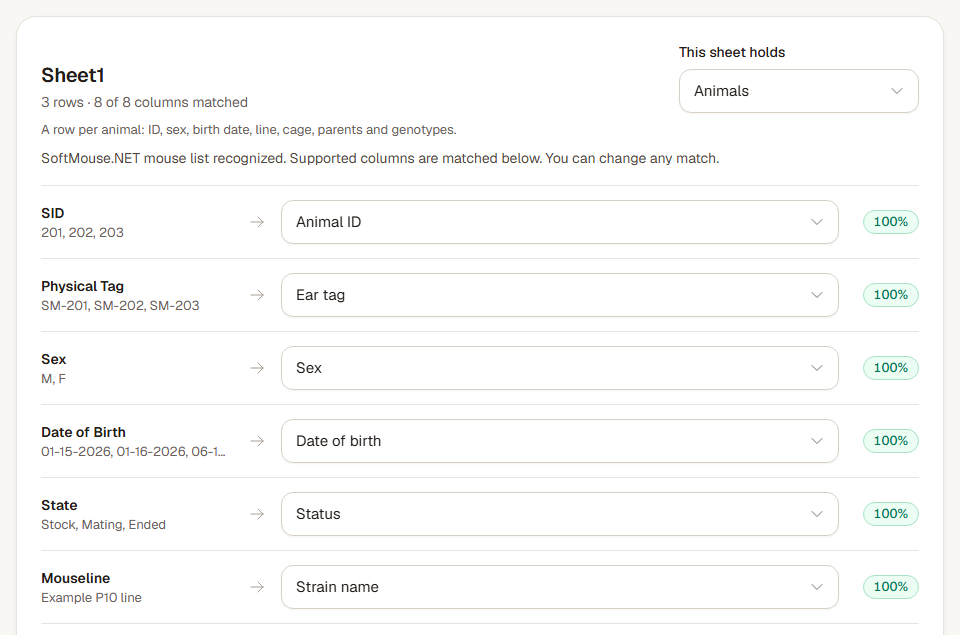
Recognized columns are matched for you. Check each match and change any field that needs a different meaning. Step 3: Check mouse states in the preview
Choose Next: options and then Check and preview. Check dates, cage numbers and genotypes as well as the total records.
Pup, Weanling, Stock and Mating are imported as Alive. Ended is imported as Sacrificed, with no invented death date. Check that this outcome is right for each ended record before saving. Mating does not set up a breeding pair.
The sample should offer Import 9 records. Animal 203 is the ended mouse; 201 and 202 are alive.
Step 4: Save and compare with the original list
Choose the import button when the preview is right and wait for Import complete. In Animals, include all statuses to see the sample's three animal records.
Check IDs 201, 202 and 203, their SM-201, SM-202 and SM-203 ear tags, and each genotype. The sample adds two cage records and one line. Its live animal count is two.
What carries over
- SID supplies Animal ID and Physical Tag supplies Ear tag when both columns are present.
- Sex and Date of Birth keep their values; Mouseline supplies the line and Cage SID supplies the cage number.
- State supplies life status using the translations shown above.
- Genotype values such as ExampleGene(fl/+) keep the gene and both alleles.
Check the result
The fictional sample adds 9 records. All three mouse records retain their tags and genotype results; the ended mouse is excluded from the live count.
Undo an import
Choose Undo import on the completion screen, or return to Import and find the batch in the last 24 hours. Undo removes the records that batch added and restores values it changed when those records can still be put back.
Read the Undo result. Records edited or used since the import may be kept. Correct a copy of your source file, check the preview again, and import only when the result is right.