Planning and lab access
Export colony records
Download selected animals as CSV or the complete records you manage as a ZIP.
Before you start
- Choose the scope you need. A selected-animal CSV is useful for a working list; the full ZIP includes historical records and related tables.
- In a single lab, an admin or PI can download all records. In a facility, the facility admin can export the facility, while a lab PI or manager can export the labs they manage.
Step 1: Export selected animals
Open Animals, choose the relevant status and filters, and tick the animals you need. Check the selected count, then choose Export CSV in the actions at the bottom. That download contains the selected records you can access, including animals with a historical status when selected.
The Export CSV button at the top of Animals serves a different scope: live animals in the chosen lab, or the live animals you can access when no lab filter is set. It does not apply the current search or line filter.
Step 2: Download the complete records
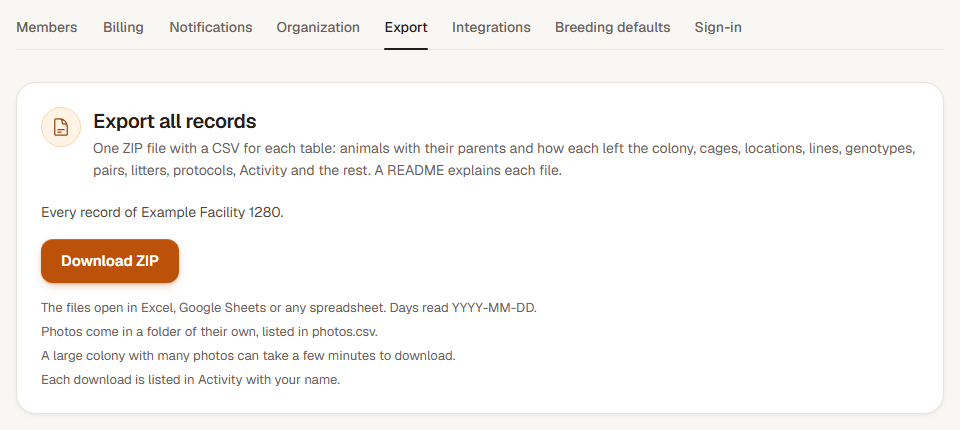
Open Settings and choose Export. Under Export all records, read the scope shown for your colony or managed labs. Choose Download ZIP and allow the download to finish; a large colony with photos can take a few minutes.
Step 3: Open and check the files
Extract the ZIP and read README.txt. It contains a CSV for each table, including animals, cages, lines, genotypes, pairs, litters, protocols and Activity. Photos have their own folder and an index in photos.csv. Dates use YYYY-MM-DD.
Open the CSV you need in a spreadsheet and check its headings and a few known records. The full export includes records that have left the live lists. Each complete download is listed in Activity with your name.
Check the result
You have a CSV for the selected animals or a complete ZIP for the colony or labs named in Export settings.
If the complete download is unavailable
Read the access message in Export settings and ask the named admin, PI or lab manager to download the appropriate scope. If a download stops, reopen the same page and try again, allowing the file to finish before closing the tab.