Records and housing
Import colony records
Bring in a spreadsheet or supported program export, check the preview and save the intended records.
Before you start
- Keep a copy of the source file. Use Excel or CSV with headings that identify the columns. In a core facility, ask facility staff to import the file if you do not have import access.
Step 1: Choose the file and record type
Open Import, choose Colony records and select the file. The importer recognizes supported JCMS, SoftMouse.NET, mLIMS and Moustra exports as well as ordinary spreadsheets. Check which sheets contain animals, cages, lines, breeding pairs, litters or genotypes.
When photo and PDF reading is available for your account, you can upload cage-card photos or a PDF colony sheet. Inspect the extracted rows before continuing. If AI is off, use an Excel or CSV file.
Step 2: Check the columns and options
Compare each source column with its mapped field. Use the sample values to check IDs, dates, sex, line, cage and protocol. Leave irrelevant columns unmapped. Choose Next: options when the mapping is correct.
Set the date format, duplicate handling and any default line, cage or protocol. Use Use ear tags as IDs for this import when that file's ear tags are the identifiers you want to keep. This choice applies to the current import.
Step 3: Check the preview
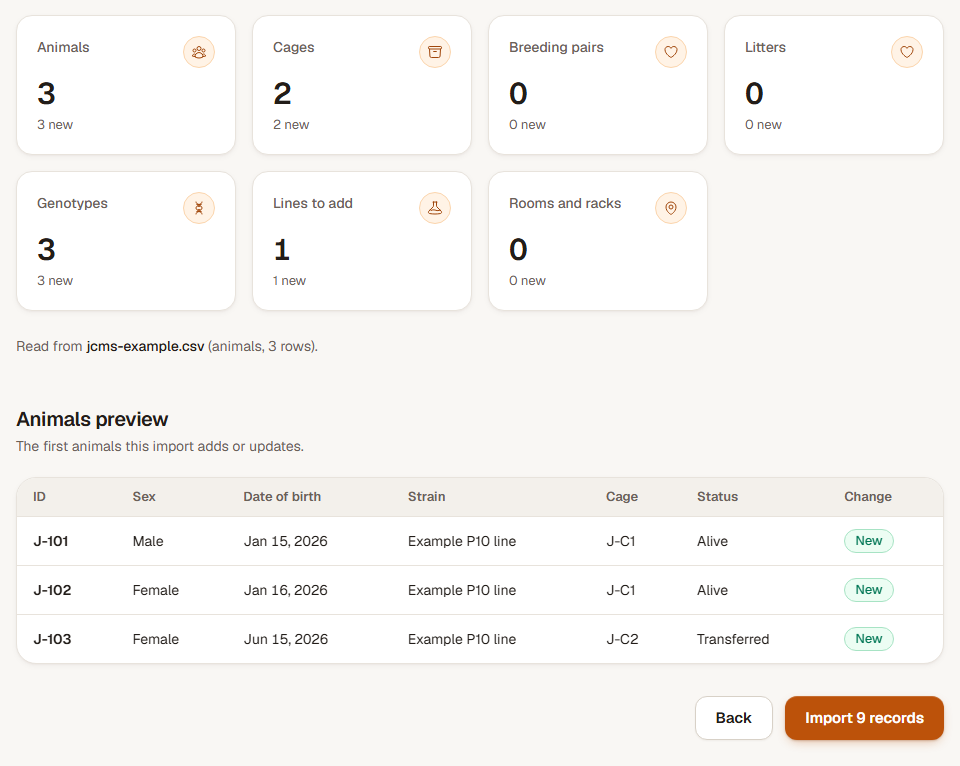
Choose Check and preview. Review the records to be added or updated and resolve the rows the importer cannot match. Check a few source rows against the preview, including any animal that has left the colony.
If a referenced protocol is missing, use Add protocol when available, save it in the new tab, then return and choose Check again. The current file stays loaded.
Step 4: Import and inspect the saved records
Choose Import with the displayed record count. Read Import complete for the numbers added and updated. Open View animals or, for a cage-only import, View cages. Check identifiers, housing and a few genotype or protocol details against the source file.
Check the result
The checked rows become colony records, and the import summary tells you exactly how many records were added or updated.
Undo an import entered in error
Within 24 hours, use Undo import on the completion screen, or reopen Import and use Undo beside the file under Recent imports. Confirm, then read what was removed, restored or kept. Records changed after the import stay as they are.