Moving from mLIMS
Bring your mLIMS animal records
Import an mLIMS animal-list spreadsheet with cages, line, parent links and named gene results.
Before you start
- Start with a list of living animals. This format does not match a status column automatically; for historical records, include a status column, map it to Status and check every outcome before saving.
- Include Genes & Genotypes so each result names its gene. A Genotypes column alone is not the same field.
- Keep the original export and try the fictional sample in a blank practice lab if needed.
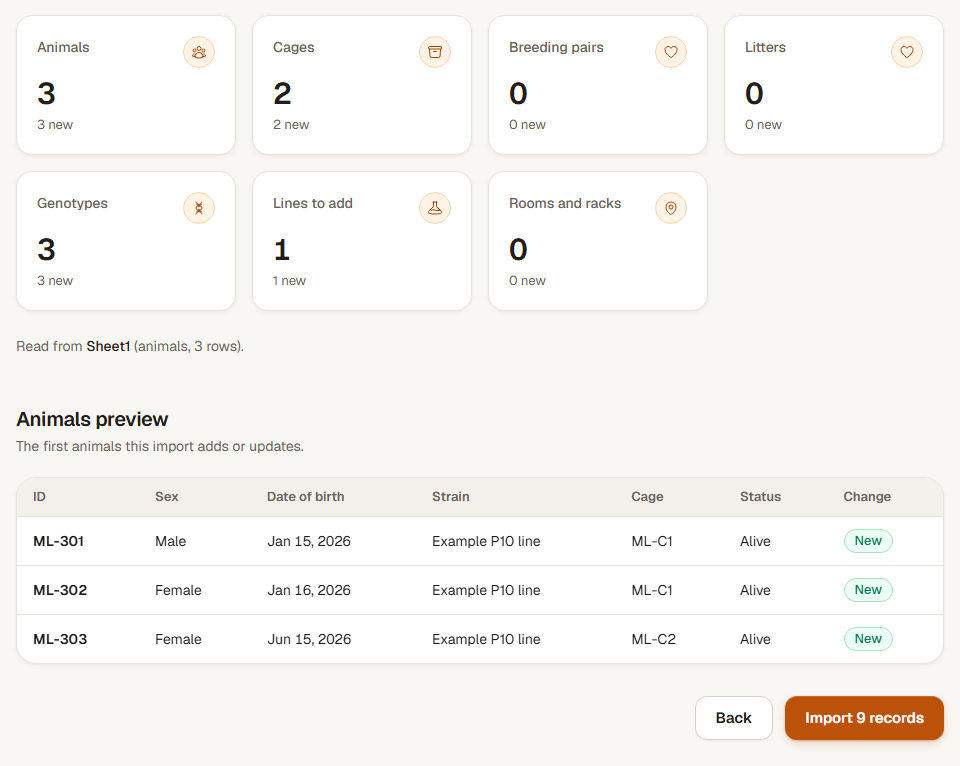
A fictional animal list: 3 animal records, 2 cages, 1 line and 3 genotype results. In an empty lab, the preview offers Import 9 records. All 3 animals are alive.
Step 1: Choose columns and export to Excel
Open the animal data set in mLIMS. Configure its columns to include Animal Name, Sex, DOB, Cage, Cage Purpose, Strain, Genes & Genotypes, Dam and Sire.
Use Export to save the Excel file. mLIMS exports the displayed data set with its configured columns; selecting individual rows does not limit that export. Check the data set's record count before downloading.
Step 2: Upload and check the named gene results
Open Import in ConductColony and upload the spreadsheet. Look for mLIMS animal list recognized. Animal Name should match Animal ID, DOB should match Date of birth, and Genes & Genotypes should match the genotype field.
Cage Purpose supplies the cage type. A Breeding cage label does not create a pair. Dam and Sire link animals from the same file or records already in your lab.
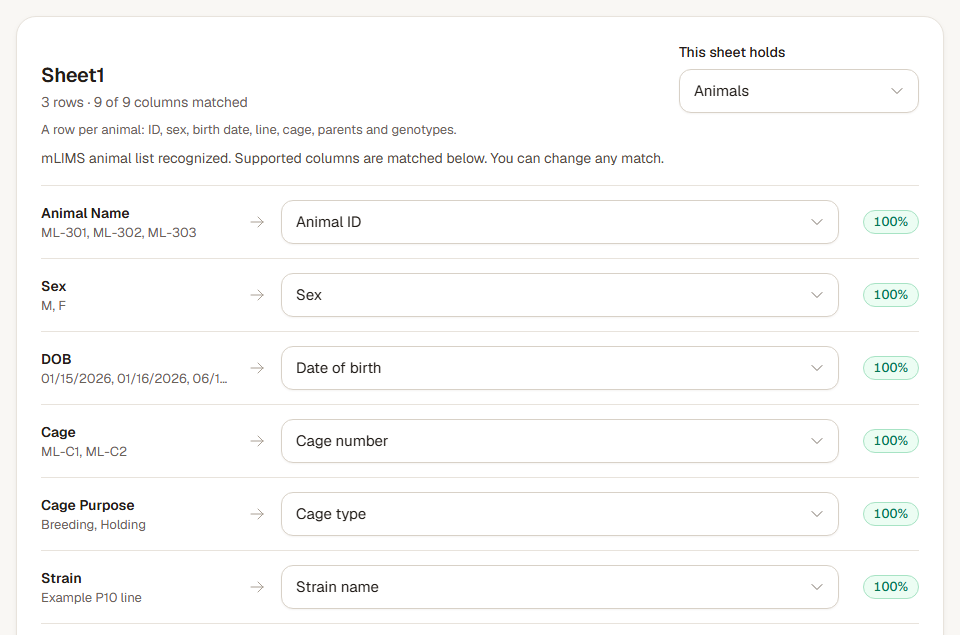
Recognized columns are matched for you. Check each match and change any field that needs a different meaning. Step 3: Preview the animals and parent links
Choose Next: options, then Check and preview. Check animal IDs, dates, status, cages and genotype values. Resolve warnings about missing parents before importing if you want those links retained.
The sample should offer Import 9 records: ML-301, ML-302 and ML-303, two cages, one line and three genotype results. All three sample animals should be Alive.
Step 4: Save and check the offspring's record
Choose the import button when the preview is right. After Import complete, open Animals and find the three sample IDs.
Open ML-303 and check that ML-301 is its sire and ML-302 is its dam. Check the ExampleGene result, ML-C1 and ML-C2 cage records, and the shared line against the spreadsheet.
What carries over
- Animal Name, Sex and DOB supply the animal's ID, sex and birth date.
- Cage and Cage Purpose supply the cage number and type; Strain supplies the line.
- Dam and Sire supply parent references when matching animals are available.
- Genes & Genotypes values such as ExampleGene: fl/+ keep the gene and both alleles.
Check the result
The fictional sample adds 9 records, including three living animals and their genotype results. ML-303 links to both parents from the file.
Undo an import
Choose Undo import on the completion screen, or return to Import and find the batch in the last 24 hours. Undo removes the records that batch added and restores values it changed when those records can still be put back.
Read the Undo result. Records edited or used since the import may be kept. Correct a copy of your source file, check the preview again, and import only when the result is right.