Records and housing
Find a cage or mouse
Find a record by cage number, animal ID or ear tag, or open it from a cage card.
Before you start
- Have the cage number, animal ID or ear tag you want to find. Choose the correct colony or facility before searching.
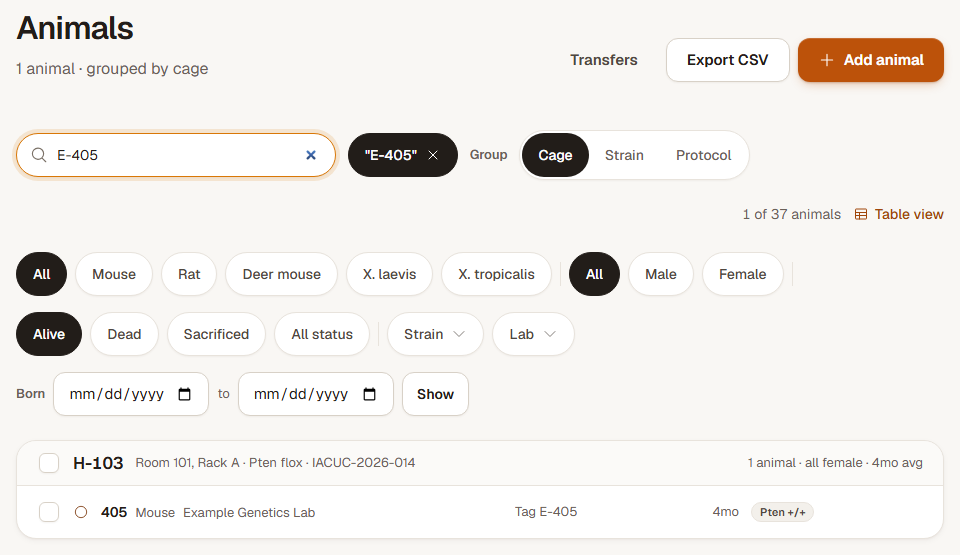
Step 1: Search for the mouse
Open Animals and type its animal ID or ear tag in Search. Results update as you type; Enter also applies the search. Use the lab and line filters when you need to narrow the list, then open the animal's ID.
Choose Table to compare mice by their recorded facts. Open a genotype's extra results when a mouse has more genes than the row initially shows.
Step 2: Find its cage
Open the cage link from the animal record, or open Housing and search for the cage number. Press Enter to apply a Housing search. Open the matching cage to see its residents and current breeding or litter work.
Step 3: Open a record at the rack
Open the QR link on a ConductColony cage card to reach that cage's record. You can also open Scan a label and type a cage, tank, animal or microchip number. If a tag matches more than one animal, choose the correct record from the results.
Check the result
The animal or cage record shows the identifier you searched for, its current housing and its recorded history.
If the record does not appear
Clear the lab and line filters, check the colony you are in and try the other identifier. For an animal that has left the colony, change the status filter. In a facility, ask your lab PI or facility admin to check access if the record belongs to a lab you cannot see.